

Buster uses a GitHub App to enable agents to read your code, create pull requests, and provide automated feedback.Documentation Index
Fetch the complete documentation index at: https://docs.buster.so/llms.txt
Use this file to discover all available pages before exploring further.
GitHub integration is required for agents to access your repositories. You must have organization ownership or administrator permissions to install the app.
Installing the GitHub App
Install the Buster GitHub App from the Buster web app under Settings → Integrations → GitHub.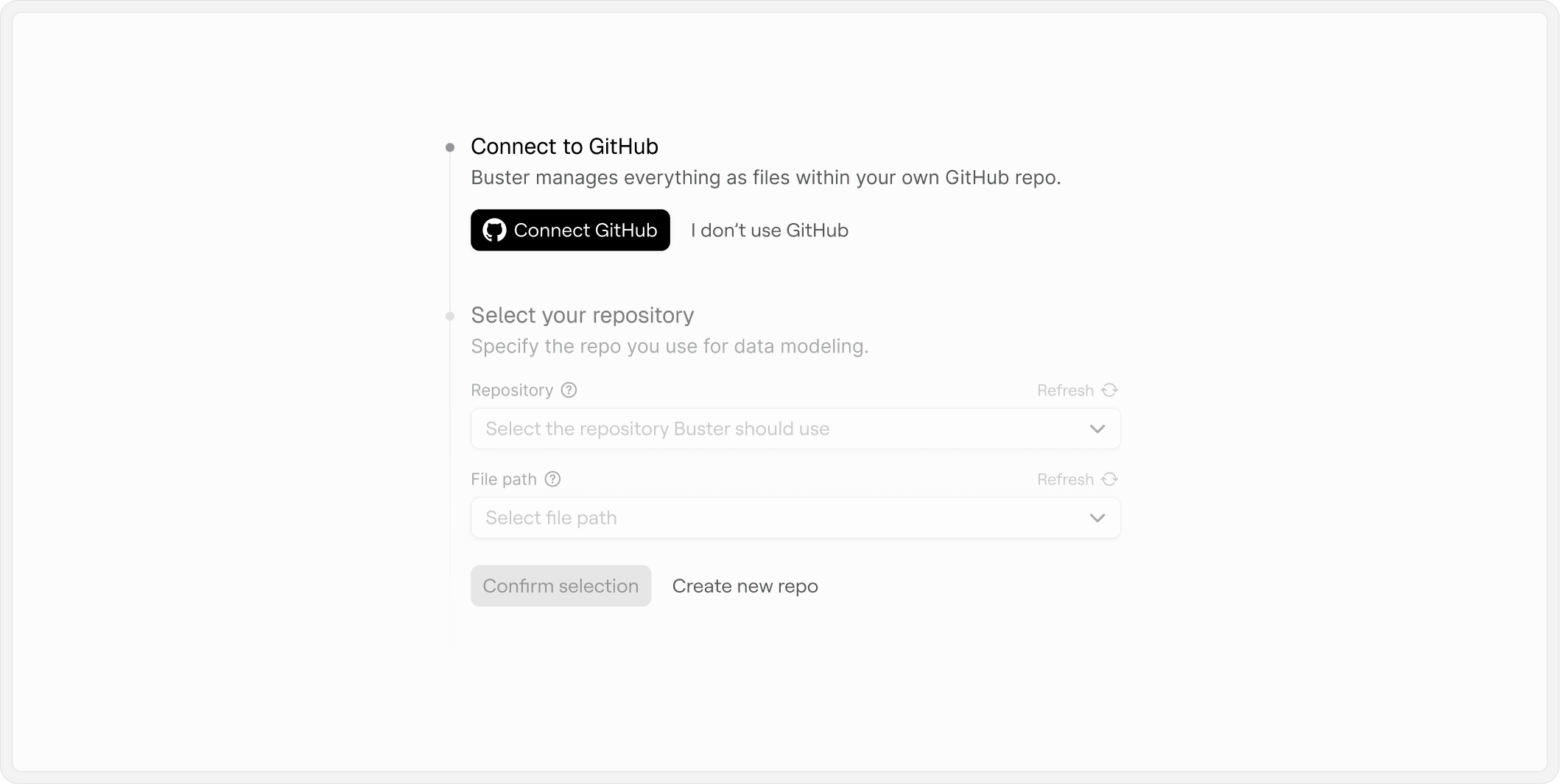
Permissions
When you install the GitHub app, you will be prompted to grant the following permissions: Read permissions:metadata— Basic repository information
contents— Read files and commit changespull_requests— Create and comment on pull requestsissues— Create and manage issueschecks— Create and update check runs
The app only accesses repositories that you explicitly grant it access to. If you have branch protection rules enabled, the app respects those rules.
How Agents Use GitHub
Webhooks
The GitHub App automatically configures webhooks to notify Buster when events occur:- Pull request events — Opened, updated, reopened
- Push events — Commits pushed to branches
- Installation events — App installed, uninstalled, or permissions changed
Check Runs
Every agent execution creates a GitHub Check Run:- Visible in the PR’s “Checks” tab
- Shows agent status (queued, in progress, completed)
- Includes agent output and summary
Git Operations
Agents can perform Git operations using installation tokens:- Clone repositories
- Create branches
- Commit and push changes
- Create pull requests via
ghCLI
Managing Repository Access
When installing the Buster GitHub App, you can grant access to:- All repositories — Current and future repos
- Selected repositories — Only specific repos
- Go to GitHub Settings → Applications → Installed GitHub Apps
- Click Configure next to Buster
- Update repository access
Troubleshooting
GitHub App Connection Issues
If you encounter problems with the GitHub app, resetting the connection can solve most issues.Uninstall the Buster app through GitHub
- In GitHub, go to Installed Apps and select Configure next to Buster
- Scroll down and select Uninstall
- Go to Authorized GitHub Apps and select Revoke next to Buster
Agent Not Triggering on Pull Requests
If your agent isn’t running when PRs are created:Verify GitHub App installation
Check that the Buster app is installed on the repository in your GitHub installations.
Check webhook deliveries
In GitHub, go to Settings → Webhooks and verify recent webhook deliveries are successful.
Review agent configuration
Ensure your agent file:
- Is referenced in
buster.yml - Has a valid
pull_requesttrigger - Has
includespatterns that match the changed files
Permission Denied Errors
If agents can’t create pull requests or comments:Check GitHub App permissions
Go to GitHub Settings → Applications → Installed GitHub Apps → Buster and verify:
- Contents: Read and write
- Pull requests: Read and write
- Issues: Read and write
- Checks: Read and write